
What this automation does
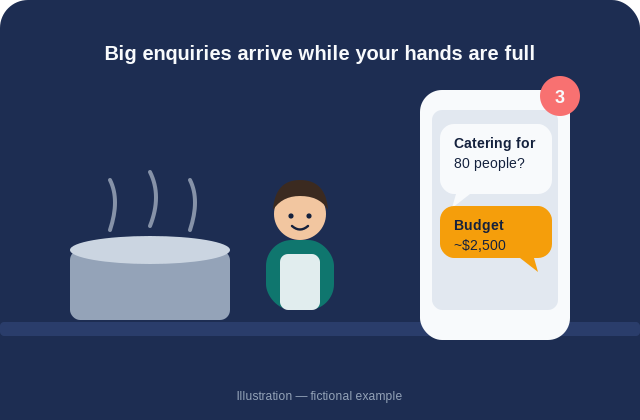
Imagine it's Tuesday lunchtime. You're plating 40 sandwiches when a company sends your website form: "We need catering for 80 people next Friday, budget around $2,500. Could someone call today?" By the time you see it that evening, they may have booked someone else.
This automation reads every catering enquiry the moment it arrives. It saves it in a Google Sheet so nothing gets lost, and sorts it by priority. When an enquiry is big and urgent, it e-mails you right away.
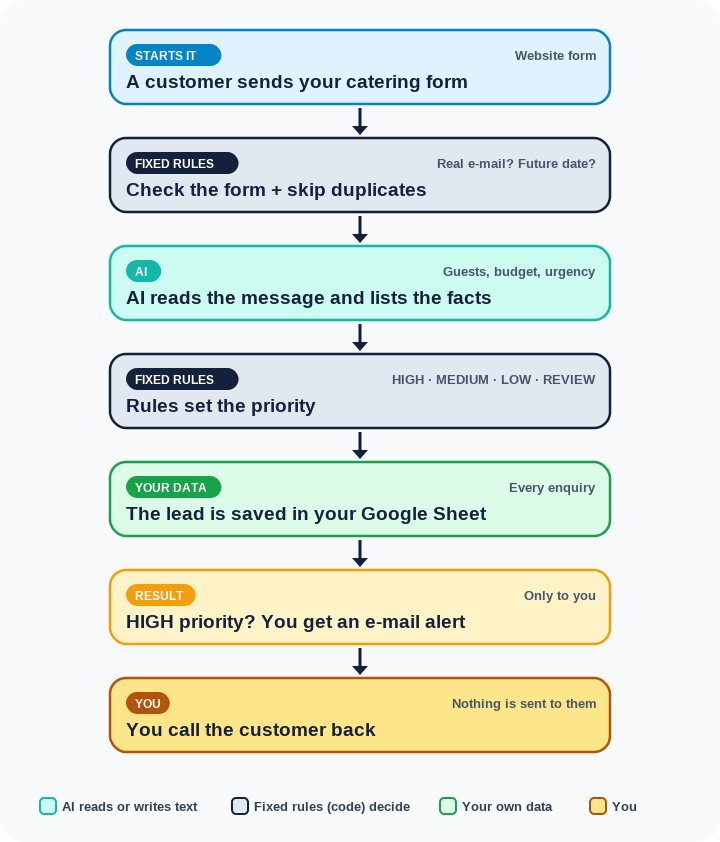
Advanced: the exact priority rules
| Priority | Rule (all numbers can be changed) |
|---|---|
| HIGH | budget ≥ $2,000 and guests ≥ 50 and the customer sounds urgent |
| MEDIUM | budget ≥ $1,000 or guests ≥ 30 |
| LOW | any other complete enquiry |
| MANUAL_REVIEW | budget, guests or date missing; form and message disagree; or the AI answer couldn't be checked. A person should look. |
These example thresholds are for a mid-size caterer. They're not business advice. Change them in the Classify Priority (rules, not AI) step to fit your business.
Who this is useful for
- Caterers and event kitchens
- Bakeries that take large orders
- Food trucks and pop-ups
- Restaurants with private dining
- Florists and party rental shops (with small changes)
It's for anyone who gets enquiries through a website form and wants the big ones to stand out.
What you will have when finished
- A Google Sheet that fills itself with every enquiry, including a priority and a one-line summary.
- An e-mail alert in your inbox for every HIGH-priority lead.
- A form on your website that tells customers their enquiry arrived.
Before you begin
You'll need these four things. Each one is free to start.
- An n8n account: n8n Cloud (free trial) or n8n you run yourself. What is n8n?
- A Google account (a regular Gmail address works) for Google Sheets and Gmail.
- An Anthropic (Claude) account to create an API key. We'll explain it in step 3.
- A website where you can add a form, such as Squarespace, Wix or WordPress. Most website builders have an "HTML" or "Embed code" block. Don't have one? You can still test everything with our test tool.
Time: About 45–60 minutes the first time (our estimate). Take a break whenever you like. n8n keeps your work.
How much it costs
The template itself is free. Running it uses a few services. Some are free and some charge you. Here is every one of them, in plain English.
| Service | Why you need it | Free option? | When might you pay? |
|---|---|---|---|
| n8n Cloud | Runs your automation 24/7 | Free trial, no credit card needed (trial limit: 1,000 runs) | After the trial. Starter is listed at €20/month billed annually for 2,500 runs a month. Pro is €50/month billed annually for 10,000. Paying monthly costs more. n8n pricing |
| n8n on your own computer or server (alternative) | Same automation, run by you | Yes, the community edition is free | For the server it runs on. It must be online all the time and reachable from the internet. This is the more technical option. |
| Claude AI (Anthropic API) | Reads messages and writes short replies | New accounts get some free credits (Anthropic doesn't state the amount) | Pay as you go. Claude Haiku 5.5 is $0.10 per million tokens read and $0.50 per million tokens written (a token is a small piece of a word). One real run of this template cost about $0.0002 (our estimate, see below). Anthropic pricing |
| Google Sheets | Stores your leads | Yes, with a personal Google account | Only if you choose Google Workspace for your business |
| Gmail | Sends the HIGH-priority alert to you | Yes, with a personal Google account | If you want a business address like you@yourshop.com through Google Workspace (paid per user) |
Download the template
A template is a ready-made automation saved as a small file. The file ends in .json, which is simply the format n8n uses to save workflows. You don't need to open or edit it. You'll import it into n8n in the setup steps below.
small-shop-agents-catering-lead.json
Free · no sign-up · contains no passwords or personal data · tested with n8n 2.48.7
See exactly what we tested in our template testing report.
Step-by-step setup
Make your lead sheet in Google Sheets
- Go to sheets.new. This opens a new, empty Google Sheet.
- Name the file at the top left, for example Catering Leads.
- Double-click the tab name at the bottom (it says Sheet1) and rename it to exactly
Leads. - Type these 12 headings into row 1, one per column, starting at A1. Spelling matters. The easiest way is to copy this line and paste it into cell A1:
lead_id received_at customer_name email service_type event_date guest_count budget_usd urgency priority status summaryThe headings are separated by tabs, so Google Sheets puts each one in its own column when you paste.
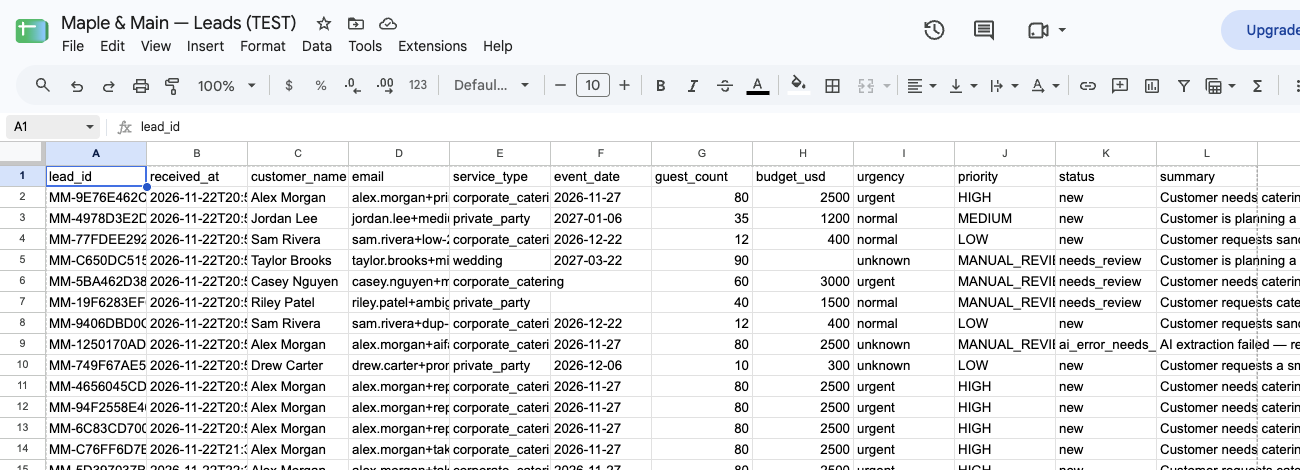
Real result Our test sheet after a few runs. Row 1 holds the headings and every enquiry adds a row. All names here are fictional. Open n8n (or create a free n8n Cloud account)
n8n is the program that runs your automation. Think of it as a very reliable assistant that follows a checklist every time something happens.
- If you don't have n8n yet: go to n8n.io and start the free n8n Cloud trial. You don't need a credit card. Pick a name for your account when asked. It becomes part of your n8n address, for example
yourshop.app.n8n.cloud. - If you already use n8n: just sign in.
You'll land on the Overview page, which lists your workflows. A workflow is n8n's word for one automation.
- If you don't have n8n yet: go to n8n.io and start the free n8n Cloud trial. You don't need a credit card. Pick a name for your account when asked. It becomes part of your n8n address, for example
Import the template
- Click the Create workflow button in the top-right corner of the Overview page. An empty canvas opens.
- Click the three dots (⋯) next to the workflow name at the top.
- Point to Import, then click From file.
- Choose
small-shop-agents-catering-lead.jsonfrom your Downloads folder. - If n8n asks "Importing this from an AI tool?", click Skip.
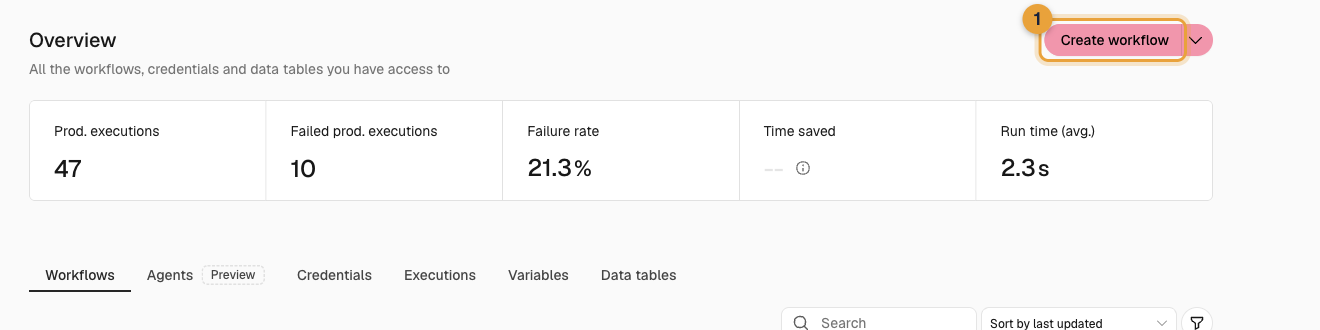
Real screenshot ① Click Create workflow. (n8n 2.48.7. Your list of workflows will be empty at first.) 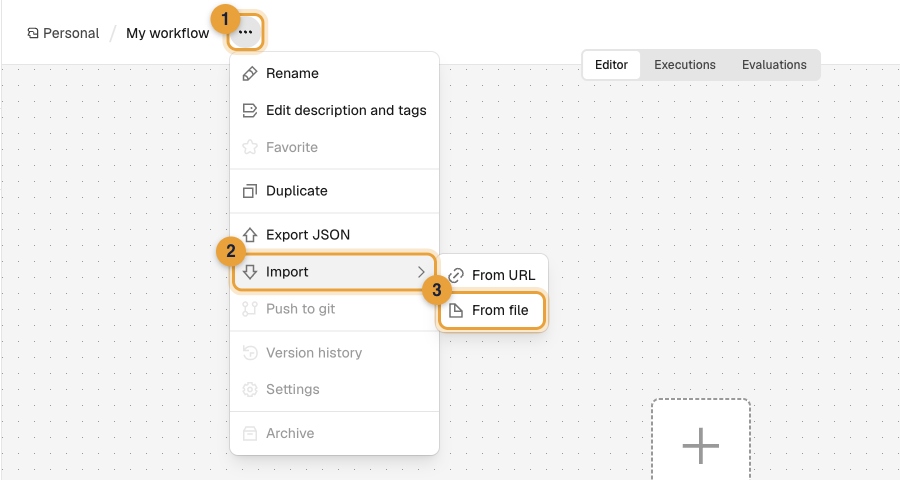
Real screenshot ① Three dots → ② Import → ③ From file. 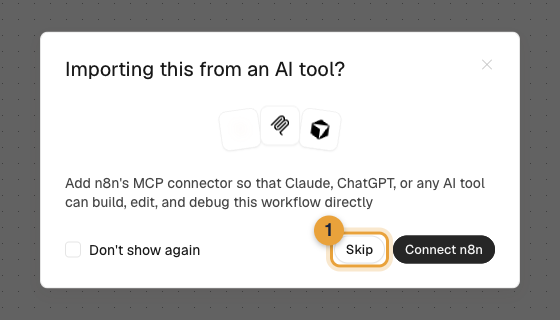
Real screenshot If this question appears, click ① Skip. You don't need it for this guide. 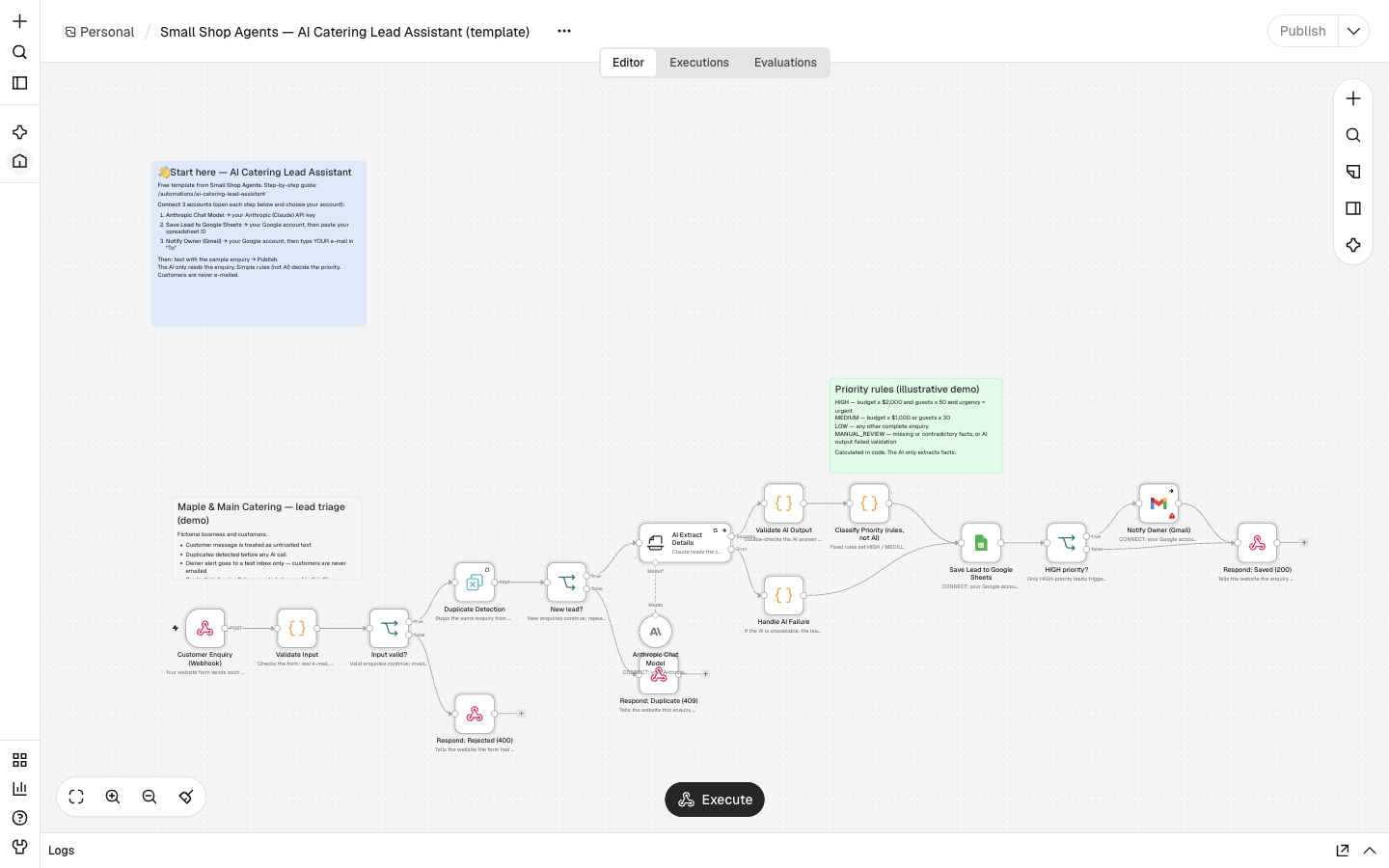
Real screenshot The template is now on your canvas. The blue Start here note lists what to connect. Each box is one step, and the grey text under each box says what it does. Connect the AI (Claude)
The AI steps need permission to use Claude. That permission is an API key (a long secret password that lets one program use another. Treat it like a bank PIN).
A. Create the key
- Go to platform.claude.com and sign up or sign in.
- Open Settings → API keys and click Create key. Name it n8n shop automations.
- Copy the key. It starts with
sk-ant-. You'll paste it into n8n in a moment. Don't paste it anywhere else. - If Anthropic asks you to add billing, follow their steps. New accounts get some free credits.
B. Add the key to n8n
- On the canvas, double-click the round Anthropic Chat Model step.
- Click the Credential box at the top and choose Create new credential.
- Paste your key into API Key, then click Save. n8n stores it encrypted. It never appears in your template file.
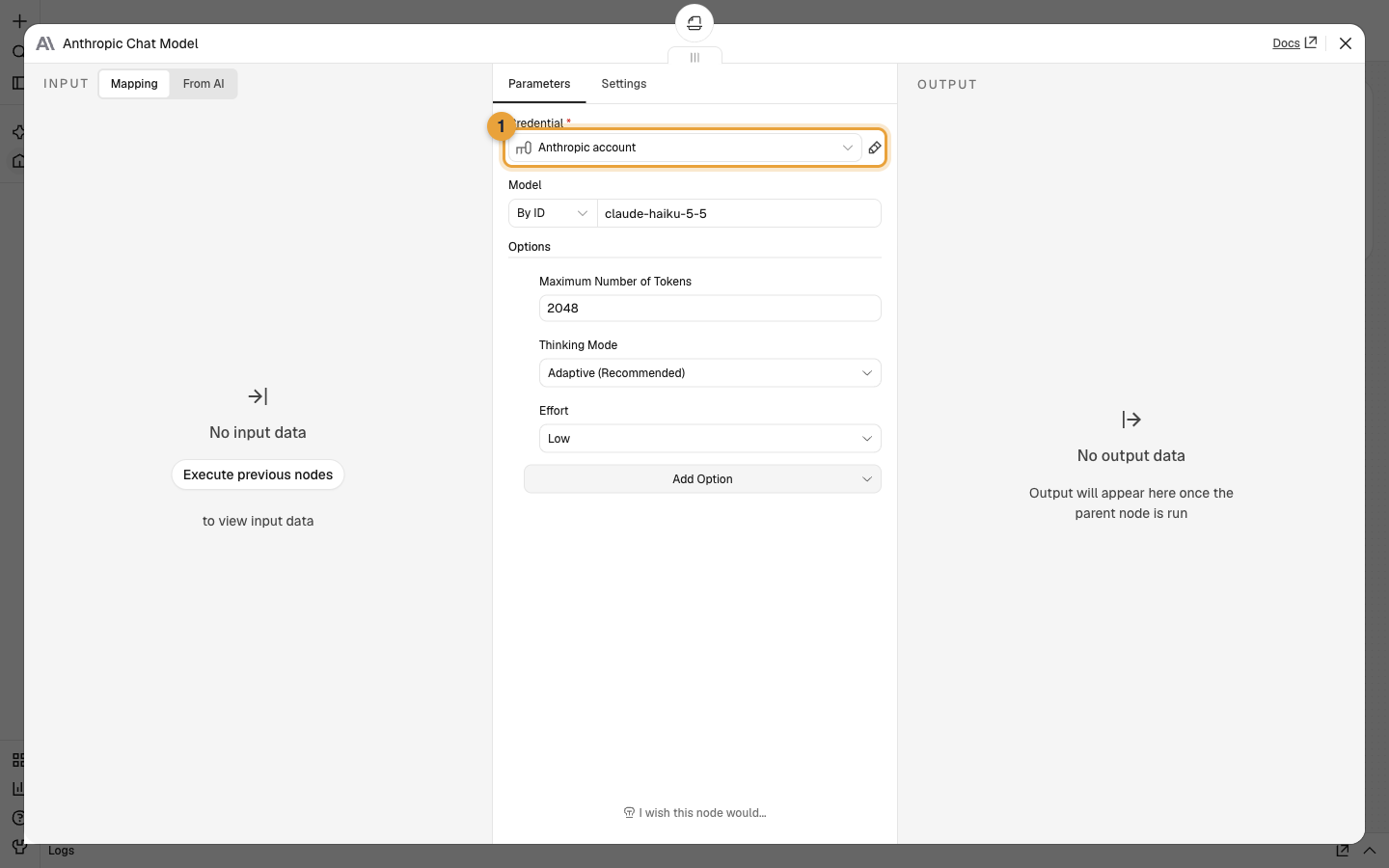
Real screenshot ① The Credential box of the Anthropic Chat Model step. (On our test computer an account was already connected. Yours will be empty until you create one.) 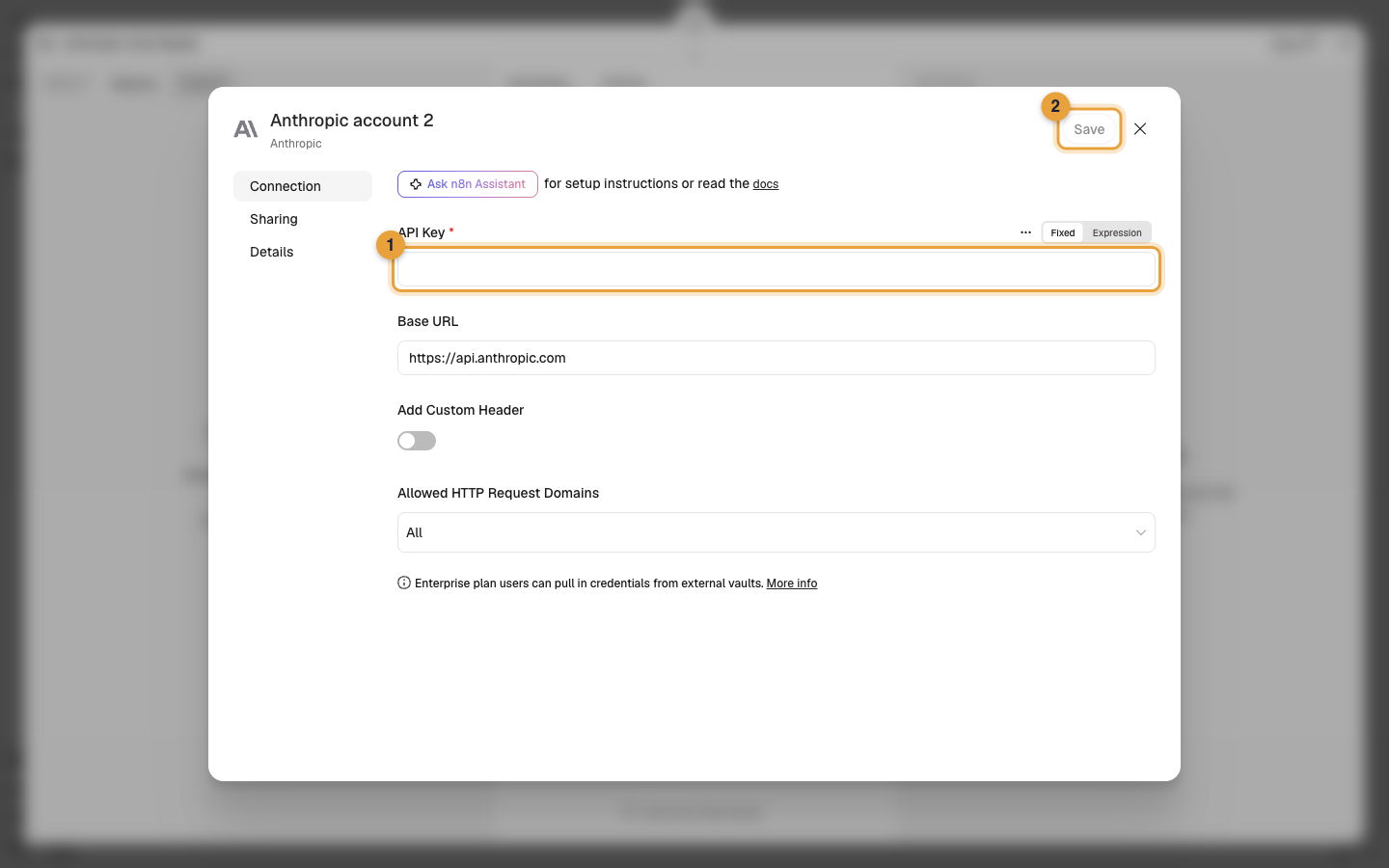
Real screenshot ① Paste your key into API Key, then ② click Save. The field in this screenshot is empty on purpose. Never share a picture of your real key. Connect your Google account (Google Sheets and Gmail)
Each Google step needs your permission to use your Google account. On n8n Cloud this is quick: n8n's docs describe it as "Sign in with Google directly on n8n, with no setup required on the Google Cloud Console."
- Double-click the Google step named below, click the Credential box and choose Create new credential.
- Click the button to sign in with Google. A Google window opens.
- Pick the Google account that owns your spreadsheet and inbox, then click Allow on the permissions page. You type your Google password only into Google's own window, never into n8n.
- Back in n8n, you'll see a success message. Close the credential window.
Tell the Google Sheets step which spreadsheet to use
Every Google spreadsheet has an ID, a long code in its web address. Here's how to copy it:
- Open your spreadsheet in Google Sheets. Look at the address bar:
docs.google.com/spreadsheets/d/1AbC…xyz/edit - Copy only the part between
/d/and/edit. That's the ID. - In n8n, double-click the Save Lead to Google Sheets step.
- Check that ① Credential shows your Google account.
- In ② Document, replace
PASTE_YOUR_SPREADSHEET_ID_HEREwith your ID. - Check that ③ Sheet says
Leads, exactly the name of your tab.
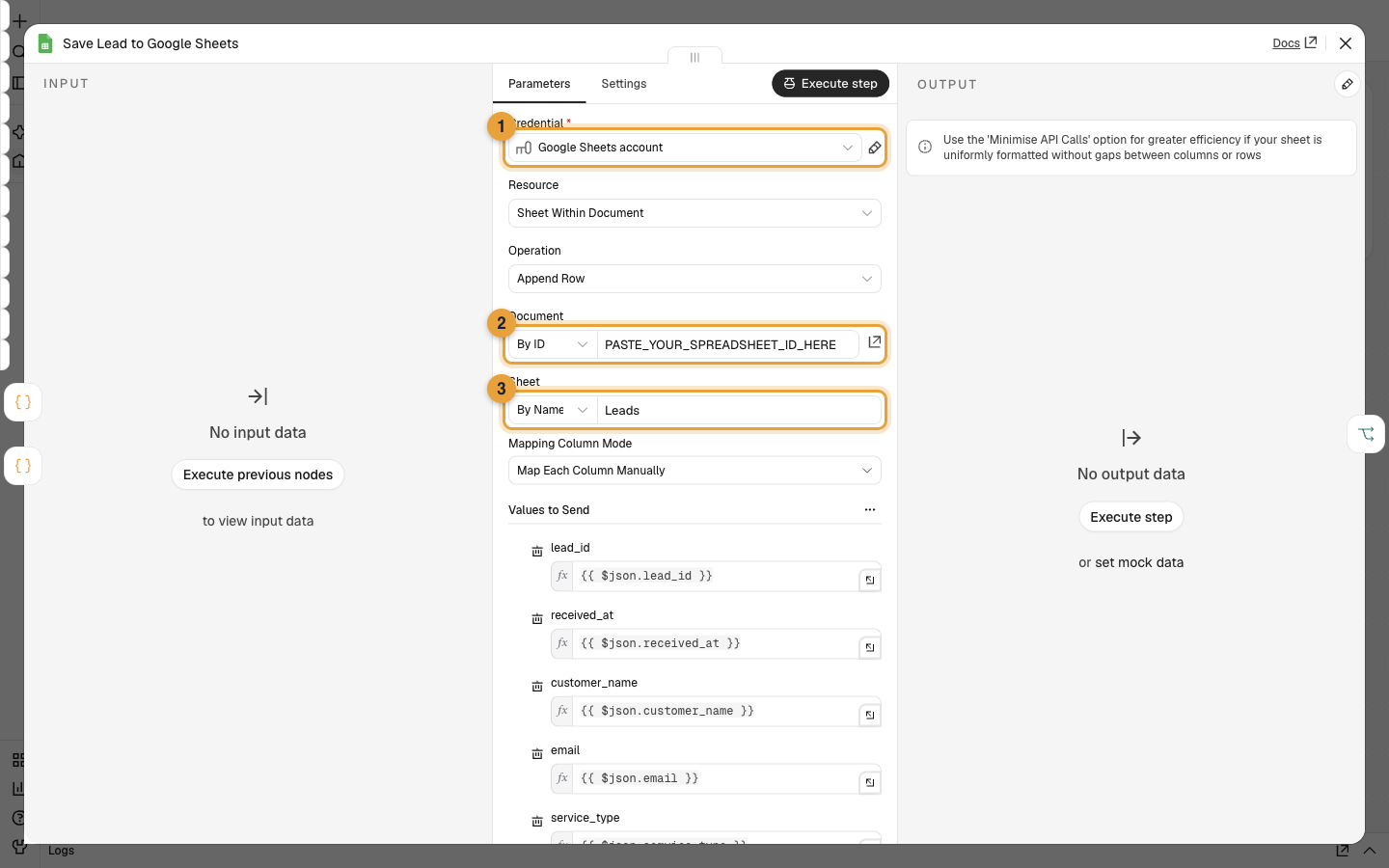
Real screenshot ① Your Google account · ② the spreadsheet ID · ③ the tab name. - Open your spreadsheet in Google Sheets. Look at the address bar:
Put YOUR e-mail address into the alert step
- Double-click Notify Owner (Gmail).
- Check that ① Credential shows your Gmail account.
- In ② To, replace
YOUR_EMAIL@example.comwith the address where you want alerts. - Optional: in Message and Sender Name, replace "Maple & Main" (our fictional demo caterer) with your business name.
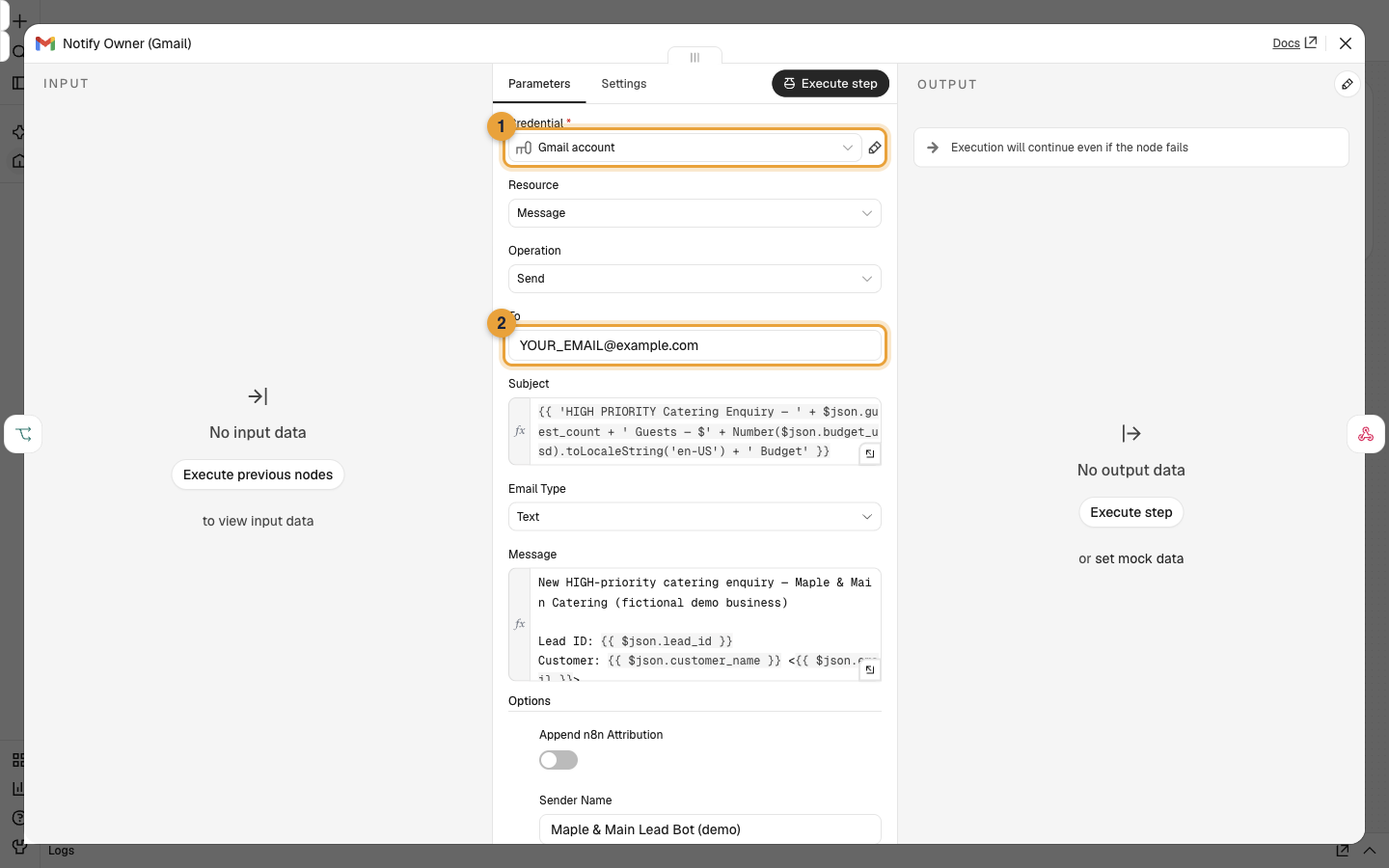
Real screenshot ① Your Gmail account · ② your own e-mail address. This step only ever writes to you. Copy your form address (the webhook)
Your website form needs an address to send enquiries to. In n8n this is called a webhook (a private web address that works like a mailbox: whatever is posted to it starts your automation).
- Double-click the first step, Customer Enquiry (Webhook).
- Click Webhook URLs at the top to show the two addresses.
- Test URL is for trying things out while you watch. Production URL is the one your real website uses once you publish. Copy each one when you need it with the copy icon.
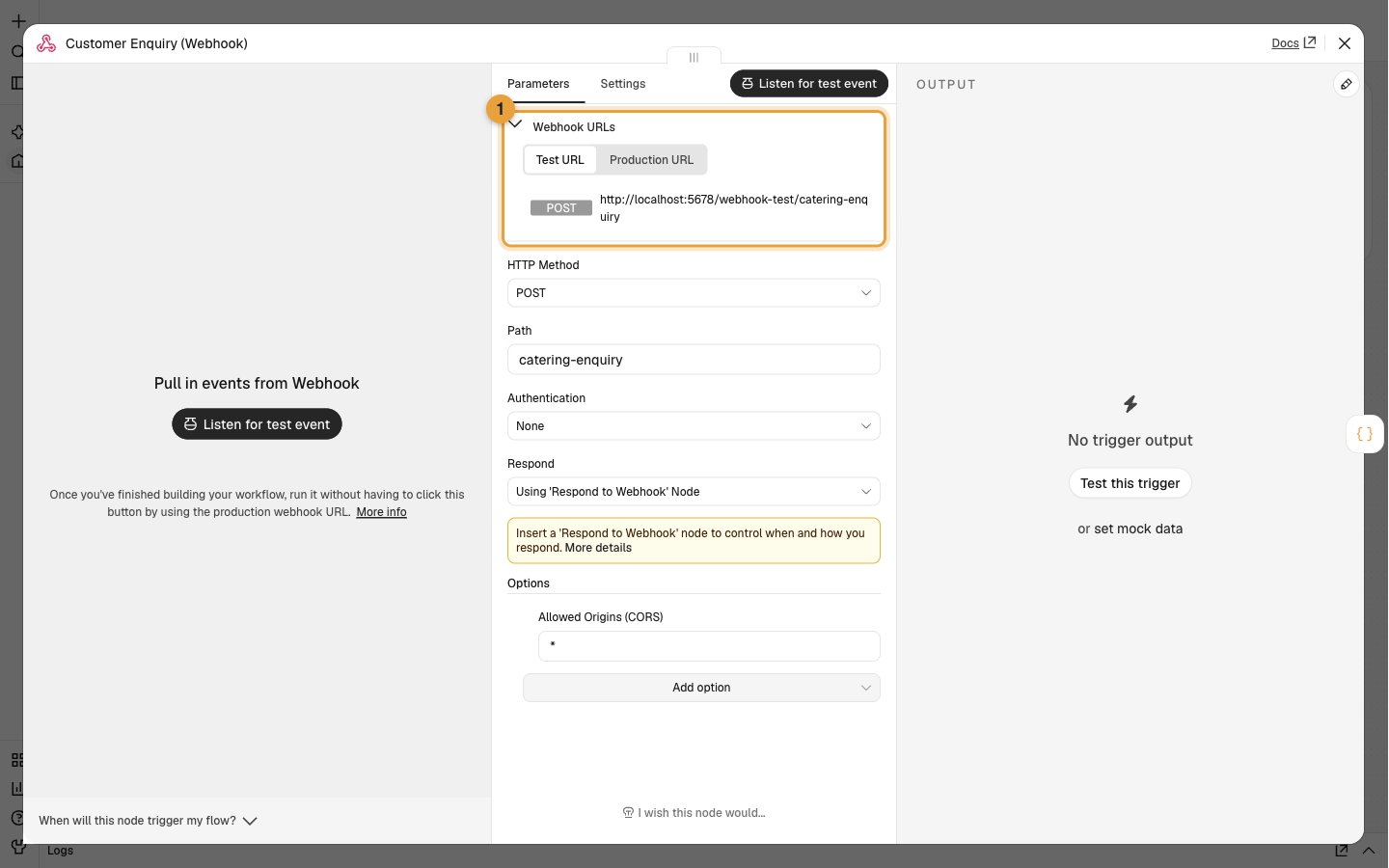
Real screenshot ① Your two addresses. On n8n Cloud they start with your own address, like https://yourshop.app.n8n.cloud/webhook/catering-enquiry. Ours showslocalhostbecause we tested on our own computer.
Test your automation
Let's send a pretend enquiry. All the names below are fictional, and example.com addresses never receive e-mail.
Make n8n listen
In n8n, click the Execute button at the bottom of the canvas. n8n now waits for one test enquiry on the Test URL (for about two minutes).
Send the sample enquiry
Open our Send a Test Message tool in a new tab. Paste your Test URL, keep the sample "Alex Morgan, 80 guests, $2,500, urgent" and click Send test.
Watch it run
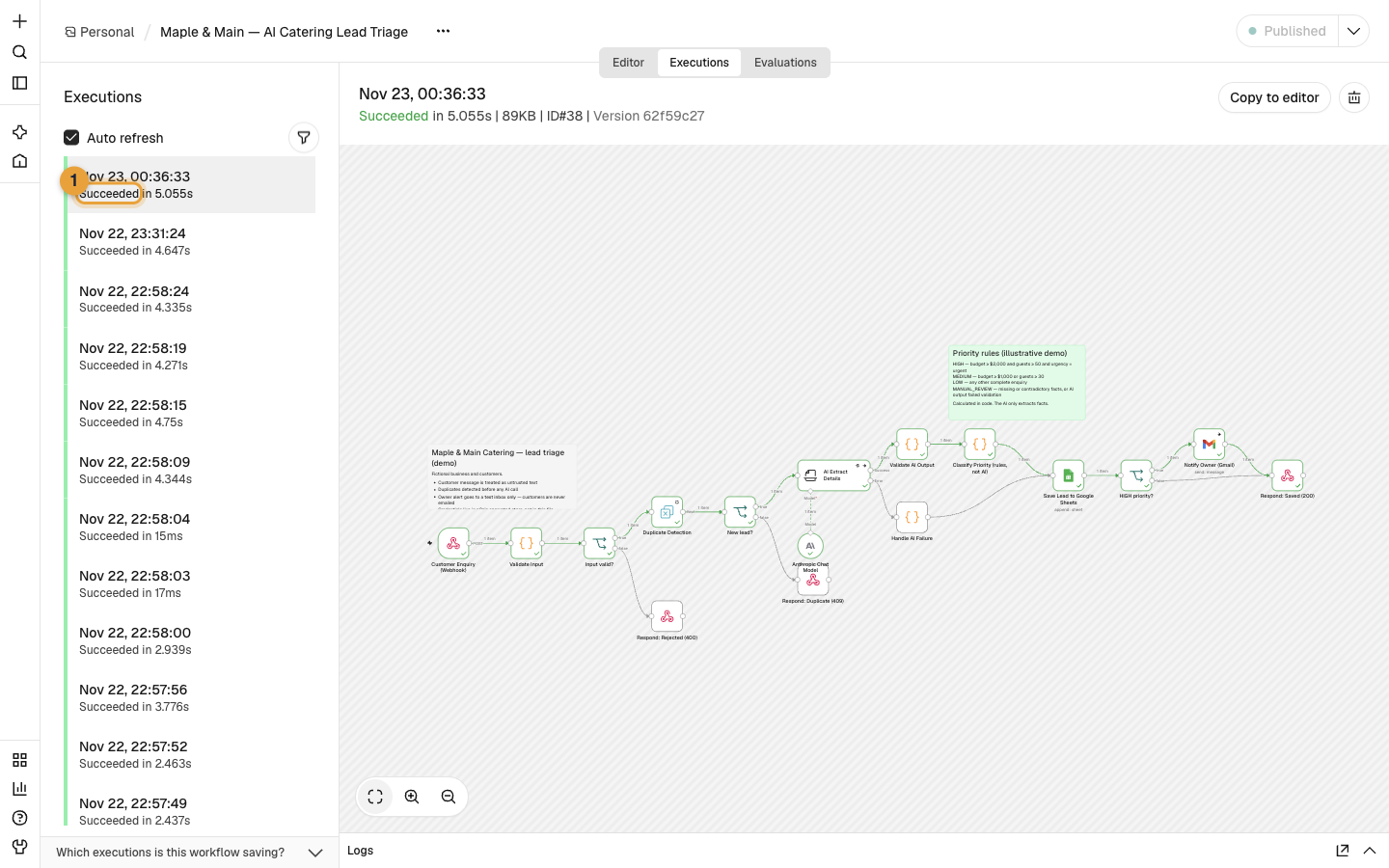
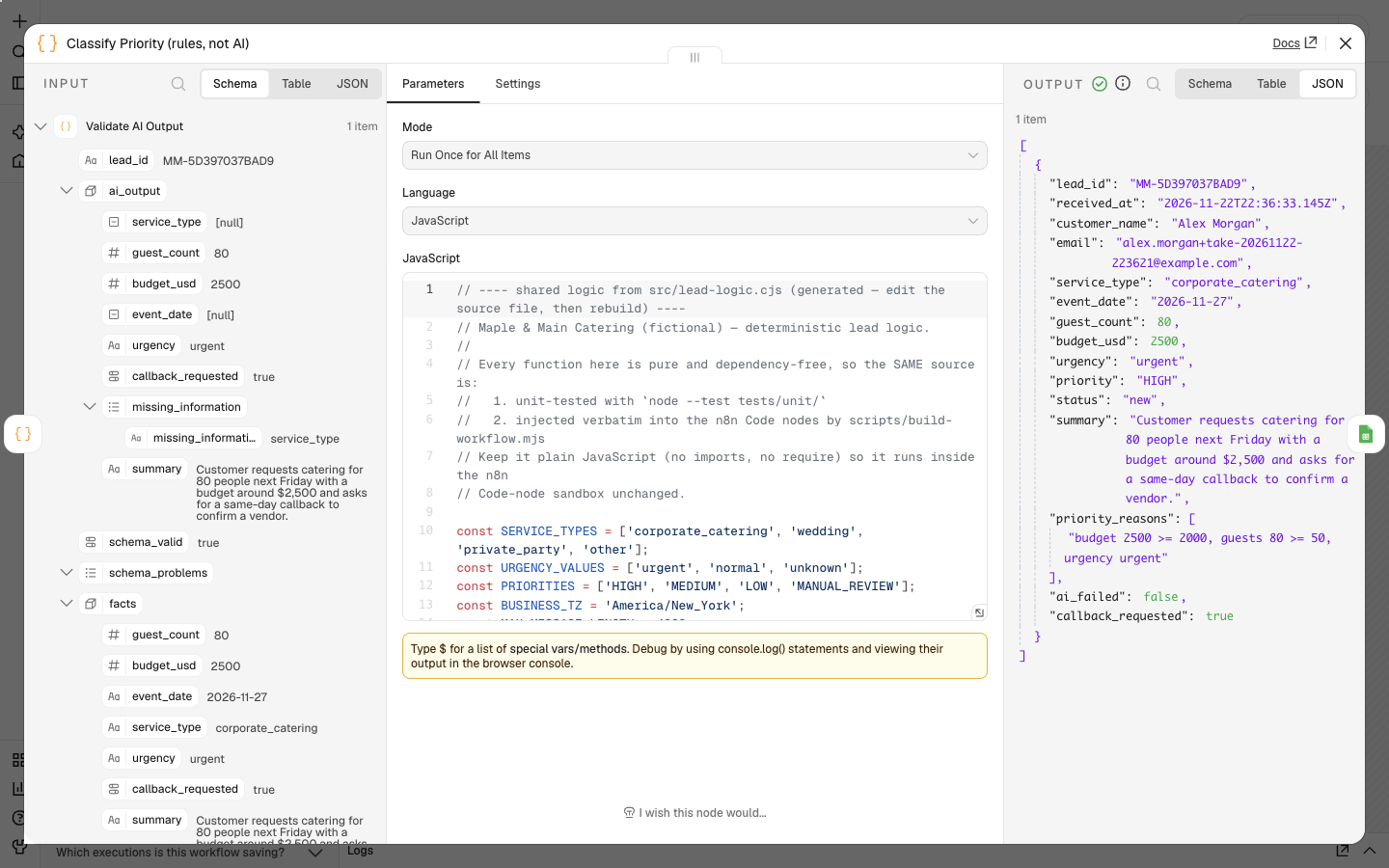
Go back to n8n. Each step turns green as it finishes. Double-click any step to see what it received and produced.
Try a medium and a low enquiry
In the tool, choose the Jordan Lee (35 guests, $1,200) and Sam Rivera (12 guests, $400) samples. They should be saved as MEDIUM and LOW, without an e-mail alert.
What success looks like
- The test tool shows
"status": "received"and a lead ID likeMM-…. - Your Leads tab has a new row with
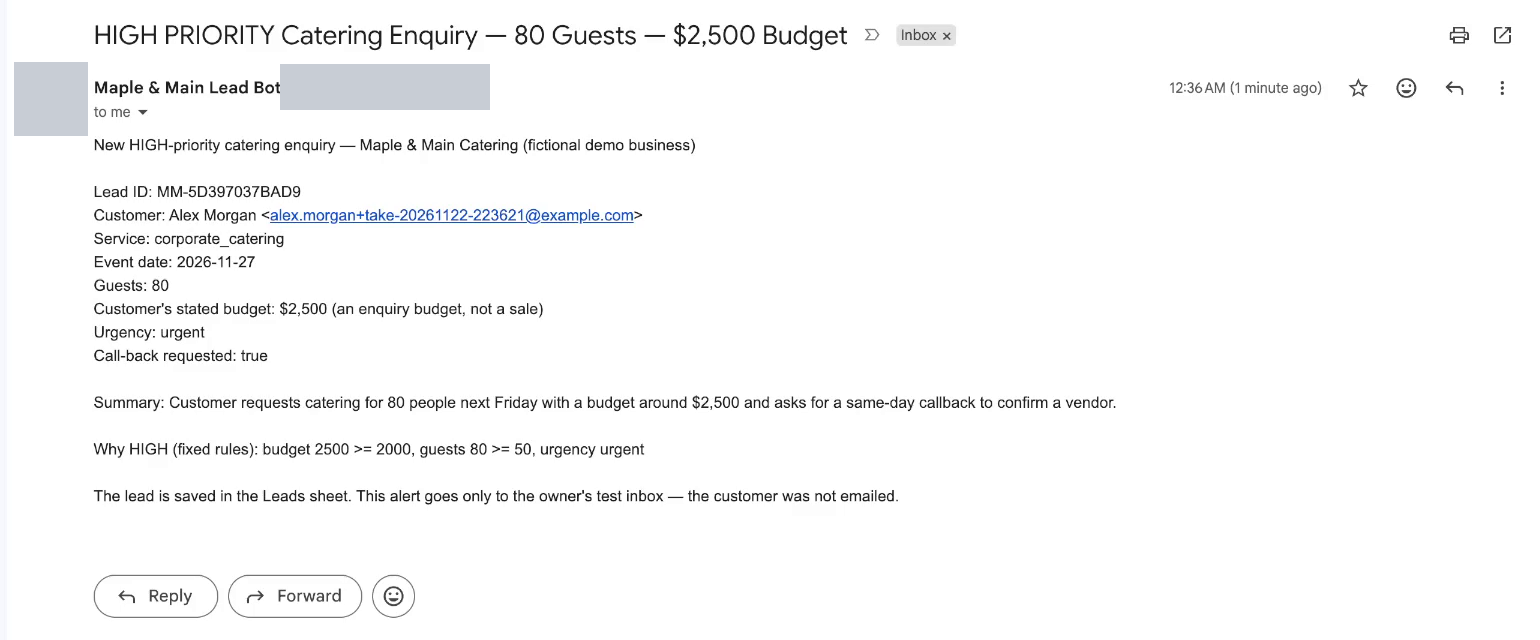
HIGHin the priority column. - Your inbox has "HIGH PRIORITY Catering Enquiry — 80 Guests — $2,500 Budget".
- In n8n, the run shows green, with Succeeded under Executions.
Troubleshooting
- The tool says "Could not reach your workflow".
- For the Test URL, click Execute first and send within about two minutes. For the Production URL, the workflow must be published. Also check you copied the whole address.
- n8n says "Requested entity was not found" in the Google Sheets step.
- The spreadsheet ID is wrong, or the Google account you connected can't open that spreadsheet. We hit this ourselves during testing. Reconnect with the Google account that owns the sheet.
- The answer is "status: rejected".
- The form was missing something. The answer lists what, for example "email is not a valid address" or "guest_count must be a whole number".
- A lead was saved as MANUAL_REVIEW.
- That's on purpose: the budget, guest count or date was missing, or the form and the message disagreed (for example, the form says 80 guests but the message says 40). A person should check it.
- No alert e-mail arrived.
- Only HIGH leads send alerts. Check the priority column, your spam folder, and the To field in Notify Owner (Gmail). If Gmail fails, the lead is still saved, and the error shows in Executions.
- Columns are in the wrong place or empty.
- Check that row 1 has exactly the 12 headings from step 1, spelled the same way, and that the tab is called
Leads. - The AI step fails with "401" or "credit balance".
- Your Claude API key is wrong or out of credit. Leads are still saved, marked ai_error_needs_review.
How to turn the automation on
Turn it on: click Publish
While you build, the automation only runs when you test it. To make it run on its own, all day, every day:
- Click Publish in the top-right corner of the canvas.
- Confirm in the window that opens.
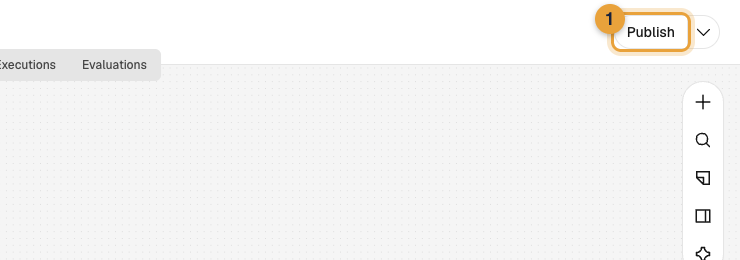
Real screenshot ① Publish switches your automation on. (Older n8n versions called this "Activate".) To switch it off later, open the same menu next to Publish and unpublish it.
Add the form to your website
Paste this form into an "HTML", "Code" or "Embed" block on your website, then replace
PASTE_YOUR_PRODUCTION_URL_HEREwith your Production URL from step 8:<!-- Small Shop Agents: catering enquiry form. Paste into an "HTML / Embed" block on your website. --> <form id="ssa-catering"> <label>Your name <input name="name" required></label> <label>E-mail <input name="email" type="email" required></label> <label>Type of event <select name="service_type"> <option value="corporate_catering">Business / office</option> <option value="wedding">Wedding</option> <option value="private_party">Private party</option> <option value="other">Other</option> </select></label> <label>Event date <input name="event_date" type="date"></label> <label>Number of guests <input name="guest_count" type="number" min="1"></label> <label>Budget in US dollars (optional) <input name="budget_usd" type="number" min="0"></label> <label>Tell us about your event <textarea name="message" required></textarea></label> <button type="submit">Send enquiry</button> <p id="ssa-catering-result" role="status"></p> </form> <script> const SSA_URL = "PASTE_YOUR_PRODUCTION_URL_HERE"; document.getElementById("ssa-catering").addEventListener("submit", async (e) => { e.preventDefault(); const out = document.getElementById("ssa-catering-result"); const data = Object.fromEntries(new FormData(e.target)); out.textContent = "Sending…"; try { const r = await fetch(SSA_URL, { method: "POST", headers: { "Content-Type": "application/json" }, body: JSON.stringify(data) }); const d = await r.json(); out.textContent = r.ok ? "Thank you! We received your enquiry and will contact you soon." : d.status === "duplicate" ? "We already have this enquiry. We'll be in touch soon." : "Please check the form: " + (d.errors || []).join(", "); } catch { out.textContent = "Sorry, something went wrong. Please call or e-mail us instead."; } }); </script>Send one real test from your website
Fill in the form on your live website using your own name and the fictional message. Then check the sheet and your inbox.
How to keep it working
- Look at Executions once a week. Open your workflow and click the Executions tab at the top. Green means it worked. Red means a step failed. Click a red one to see which step and why.
- Reconnect Google if it stops. If a Google step fails with "unauthorized" or "invalid grant", open the step, click the credential and sign in with Google again.
- Watch your AI credits. In the Claude Console you can see what you've used and set a spending limit. If credits run out, the AI steps fail (leads are still saved for review).
- Watch your n8n run count in your n8n account, especially in your first month.
- Update your sheet, not the workflow. Your leads live in the sheet.
- Get an e-mail when something fails (optional): n8n can run an "error workflow" that alerts you. See n8n's error handling guide.
Security and privacy
- Keep keys inside n8n. Paste API keys only into n8n's credential window. Never e-mail them, put them in a spreadsheet, or show them in a screenshot or video.
- Exported files are safe to share. When you download a workflow, n8n leaves your credentials out. Still, check for e-mail addresses you typed into steps.
- Customer messages are untrusted text. The templates tell the AI to only read and classify them and to ignore any instructions inside them. The important decisions are made by fixed rules, not by the AI.
- Collect only what you need. Don't ask customers for card numbers, passwords or ID numbers in your forms.
- Tell customers. Mention in your own privacy policy that messages are processed by automation tools (n8n, Google, Anthropic).
- Use a test sheet first. Make a copy called "(TEST)" while you try things out.